

Webex Icebreakers: 12 Games to Run in Any Meeting

The best Webex icebreakers are short, need no props, and use tools already in the meeting window: chat, reactions, polls, and breakout sessions. Below you’ll find twelve games sorted by the time you have, the exact way to run each one, and the host settings to check before you start. Most take two to ten minutes, and none needs anyone to install anything.
TL;DR
- Pick the icebreaker by the clock: use a one-word check-in or a chat game for 2 minutes, a drawing or guessing game for 5, and breakout rooms for 10 or more.
- Use what Webex already gives you: chat, reactions, polls, and breakout sessions cover nearly every format.
- Timebox it, go first, and let people pass. Those three habits matter more than which game you choose.
- Match the game to the goal: light and silly for recurring meetings, structured and low-pressure for new hires.
- For a daily habit instead of a one-off, a browser-based game that works alongside Webex saves you from inventing a new activity every week.
Table of Contents
- What makes a Webex icebreaker work
- Set up Webex before the icebreaker
- Two-minute Webex icebreakers
- Five-minute games that get people talking
- Ten-minute icebreakers for onboarding and team bonding
- Which icebreaker fits which situation
- How to run an icebreaker so people actually enjoy it
- Our perspective: icebreakers should be a habit, not an event
- Keep the fun going between meetings
- More icebreaker ideas for different settings
- A sample five-minute opener you can copy
- FAQ
- Sources
What makes a Webex icebreaker work
An icebreaker in a video meeting has a harder job than one in a conference room. Nobody is standing next to anyone, microphones create awkward overlaps, and half the group may be on mute while answering email. A good one fixes that in three ways.
It is brief. Guidance from the workshop-design team at SessionLab recommends timeboxing virtual icebreakers and using a stopwatch so the activity doesn’t eat the agenda. We agree. If you plan five minutes, say “five minutes” out loud and stick to it.
It needs no setup. Remote participants join from kitchens, cars, and spare rooms. The same guidance advises low-prop activities that work from wherever people are sitting. If a game requires a printout, a download, or a special account, some of your team will skip it.
It is optional in practice. The same source suggests leaders go first, give positive feedback, and invite participation without forcing it. A person who can pass without comment will often join in on round two.
Keep those three tests in mind as you read the games below.
Set up Webex before the icebreaker
Most icebreaker failures are technical, not social. Two minutes of preparation as host removes them.
Check reactions and chat
Reactions let people respond without unmuting. Webex notes that hosts and cohosts can turn reactions off, so confirm they are on before you build a game around them. Webex also describes how a reaction appears in the lower-left corner of the window when your video isn’t in view, for example during screen sharing, which is handy for large calls.
Chat is the other quiet channel. Ask people to type but not press Enter until you say “go” (the “chat waterfall”), and everyone’s answer lands at once.
Prepare a poll
Webex lets a host or cohost create and share polls in meetings to gather feedback, take votes, or test knowledge. A two-question poll (“coffee or tea?” and “city or countryside?”) works as an icebreaker in under a minute, and the results give you something to comment on.
Plan breakout sessions
For groups over about eight, small rooms make conversation easier. Webex says hosts and cohosts can create breakout sessions and preassign participants when scheduling a meeting, and can also start them during the meeting. If you plan to use rooms, set them up before people arrive, and check that your meeting platform version supports the feature.
A quick pre-flight checklist
- Reactions enabled, chat open to everyone.
- Poll drafted, if you plan to use one.
- Breakout sessions enabled and preassigned, if the group is large.
- A timer visible to you.
- Your own answer ready, because you go first.
Two-minute Webex icebreakers
Use these at the start of a standup, a weekly sync, or any meeting with a packed agenda.
1. One-word check-in
Ask everyone to describe their morning, week, or energy in one word. Type it in chat and send on your count of three. Read a few aloud and group the themes (“three tired, two caffeinated”).
Time: 2 minutes for up to 15 people. Best for: recurring meetings.
2. Chat waterfall
Pose a question with a short answer, such as “What’s the last thing you ate?” or “What’s open in your other browser tab?” Everyone types without sending, then hits Enter together. The screen floods with answers and people react to what others wrote.
Time: 2 to 3 minutes. Best for: big groups where going person by person would take forever.
3. Reaction vote
Give a two-way choice and ask people to answer with a reaction: thumbs up for mountains, clap for beach. It needs no unmuting and no typing, so it suits the shyest participants and meetings that have already run long.
Time: 1 to 2 minutes. Best for: all-hands calls and large webinars.
4. Poll of the day
Run a Webex poll with a light question: “Which of these would you give up for a month: coffee, music, or weekends outdoors?” Share results on screen and take two reactions from the group.
Time: 2 minutes. Best for: teams that like data and quick banter.
Five-minute games that get people talking
These suit a team meeting where you can spare a slot, or the first five minutes of a one-hour session.
5. Two truths and a lie
Each person shares three statements about themselves, and the team guesses which one is false. It is a classic for a reason: it surfaces stories. To keep it moving, ask only three or four volunteers per meeting and rotate over several weeks.
Time: 1 minute per person. Best for: newer teams.
6. Draw your mood
Ask everyone to sketch their current mood on paper or in the Webex whiteboard, then hold it up to the camera. Nobody needs artistic skill, and the worse the drawing, the better the laugh. It also gives quieter people a way to express how they feel without giving a speech.
Time: 4 to 5 minutes. Best for: teams that have worked together a while.
7. Yellow Submarine
This game is described in a roundup of Webex games from Fireflies: participants draw a submarine and try to show it to the camera without others noticing, and the player with the most successful displays wins. It rewards quick reflexes and produces plenty of chaos, so keep rounds short.
Time: 5 minutes. Best for: teams that enjoy playful competition.
8. Virtual show and tell
Ask people to hold up an object within reach that has a story: a mug, a book, a souvenir. Give each person 20 seconds. Choose five people per meeting, not everyone.
Time: 5 minutes. Best for: building familiarity across offices and time zones.
9. Emoji story
Post a movie, a hobby, or a weekend in emojis in chat and let the team guess. Then ask each person to describe their own week in three emojis. This is quick, visual, and works across languages, which helps global teams.
Time: 3 to 5 minutes. Best for: mixed-language or international groups.
Ten-minute icebreakers for onboarding and team bonding
These take more time, so reserve them for a kickoff, a new hire’s first team meeting, or a monthly social slot.
10. Breakout pairs: “three things in common”
Send people to breakout rooms in pairs or trios with one task: find three things you have in common that are not work-related. Give four minutes, then bring everyone back and ask each group to share the most surprising one. Pairs feel safer than a group of twelve, so new hires speak more freely.
Time: 8 to 10 minutes. Best for: onboarding and cross-team meetings.
11. Workspace tour
Each person gives a 30-second tour of where they work: the view, the desk, the pet. It makes remote colleagues more human and gives everyone an easy hook for later small talk. Make sure the camera is optional, and offer “describe it in chat” as an alternative.
Time: 10 minutes for eight people. Best for: new teams and new hires.
12. Virtual bingo
Share a bingo card of attributes (“has a pet,” “has lived abroad,” “drinks tea”) and ask people to find a matching teammate in chat or breakout rooms. It creates natural mingling, which is what many video calls lack. If you want a ready-made, browser-only version, see our five-minute icebreaker bingo.
Time: 5 to 10 minutes. Best for: larger onboarding sessions and company events.
Which icebreaker fits which situation
| Situation | Good picks | Time |
|---|---|---|
| Daily or weekly standup | One-word check-in, chat waterfall, reaction vote | 2 min |
| Team meeting with a short slot | Two truths and a lie, draw your mood, emoji story | 5 min |
| New hire’s first week | Breakout pairs, workspace tour, show and tell | 8 to 10 min |
| Large all-hands | Reaction vote, poll of the day, bingo | 2 to 5 min |
| Cross-time-zone team | Emoji story, chat waterfall (answers stay readable later) | 3 to 5 min |
| Introverts in the room | Poll, reaction vote, chat-only formats | 2 min |
If your group includes people who dread speaking in front of others, our introvert-friendly icebreakers with scripts are built for exactly that.
How to run an icebreaker so people actually enjoy it
A good game badly hosted still falls flat. These habits make the difference.
Go first, and go small. If you want honest answers, give one first. A leader who shares something mildly funny sets the bar for everyone else, and a leader who shares something heavy makes people nervous. SessionLab’s advice to model the activity yourself matches what we see on remote teams.
Say how long it will take. “Two minutes, then we’ll start the agenda” gives people permission to relax.
Make it fine to pass. Say “pass is always an answer.” Most people don’t use it, but knowing it exists lowers the stakes.
Respond to what people say. One sentence of reaction (“I love that you keep a plant named Greg”) is enough to show that the game is about the people, not the process.
Rotate the format. If you do the same check-in every Monday, it becomes a ritual that people tune out. Alternate between chat, drawing, polls, and rooms.
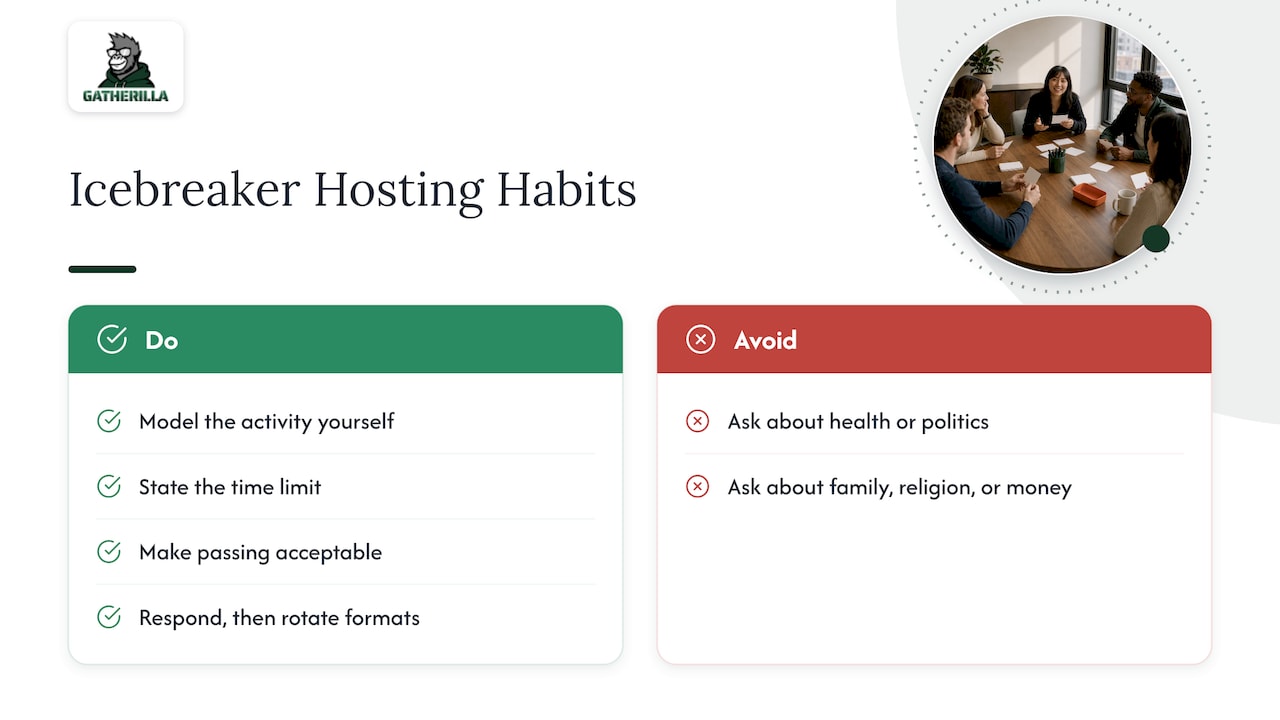
Keep questions safe. Stay away from topics tied to health, family, politics, religion, or money. Favorite foods, weekend plans, and hypothetical choices carry no risk. If you’re unsure about a question, ask whether you’d be comfortable answering it in front of your own manager.
Our perspective: icebreakers should be a habit, not an event
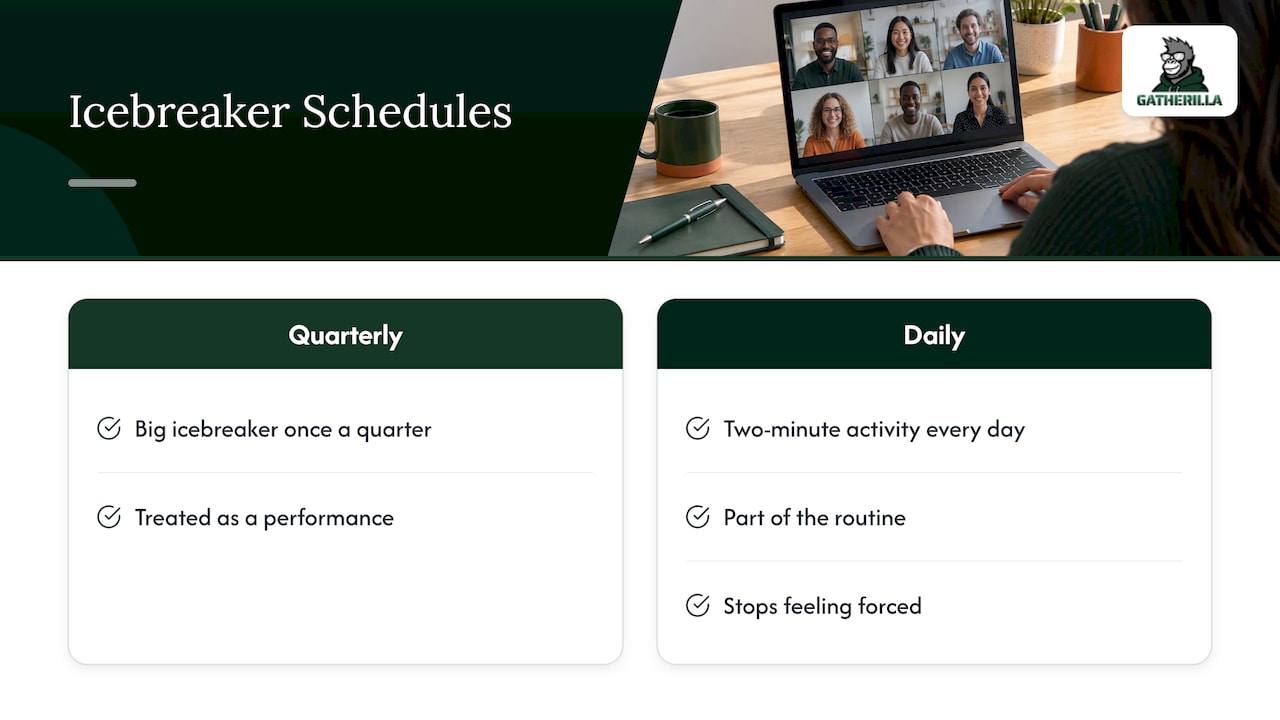
We build team games for remote and hybrid teams, so we’ve thought hard about why so many icebreakers fail. In our experience the problem is rarely the game itself. It’s the schedule.
A team that plays a big icebreaker once a quarter treats it as a performance. A team that does a two-minute activity every day treats it as part of the routine, and it stops feeling forced. That is the idea behind everything we make: zero preparation for the leader, no downloads or accounts for the player, and a small daily challenge that people can do in the gaps of their day.
That’s also why we think hosts should plan icebreakers in layers. Use the tools inside Webex for the live moment: chat, reactions, polls, and rooms. Then give people something that lives beyond the meeting, such as a daily word or trivia challenge in the browser, so the connection doesn’t disappear when everyone clicks Leave.
One more thing we believe: recognition counts as an icebreaker too. When teammates can acknowledge each other for something tied to company values, conversations start more naturally in the next meeting, because people already have a good thing to say to each other.
— Thomas
Keep the fun going between meetings
Webex tools are excellent for the live part of an icebreaker. They are less suited to the days in between, when you want people to stay connected without scheduling yet another call.
That’s where Gatherilla fits. It’s a browser-based platform of multiplayer team games, daily word and trivia challenges, icebreakers, and onboarding activities. It works alongside any video conferencing tool, including Webex, and players don’t need to download anything. You can start with the free plan, and the Premium plan is priced per seat: $0.50 to $1.00 per seat per month, or $5 to $10 per seat per year, as published on our pricing page. Premium adds more games, reporting, and priority support.
If you’d like to see how a game runs before committing, try one on the Gatherilla home page during your next Webex meeting.
More icebreaker ideas for different settings
If these twelve don’t match your meeting, our other guides go deeper:
- Our guide to remote icebreaker games for team leaders covers a wider range of formats for distributed teams.
- For meetings where some people are in a room and others are on screen, see our hybrid meeting icebreakers.
- For groups of 30 or more, try our icebreaker games for large groups.
- If you want short, competitive challenges, our virtual Minute to Win It games work well on any call.
- For international teams, icebreakers that build psychological safety avoid references that only some cultures will recognize.
A sample five-minute opener you can copy
Here is a script for the first five minutes of a Monday team meeting. Adjust the wording to your own style.
- Minute 0: “Before we start, five quick minutes to warm up. I’ll go first.”
- Minute 0 to 1: Chat waterfall. Ask: “What’s one thing you’re looking forward to this week?” Type answers, don’t send yet. Count down from three.
- Minute 1 to 2: Read three or four answers aloud. React to each in a sentence.
- Minute 2 to 4: Launch a one-question poll: “Which sounds best right now: a nap, a walk, or a snack?” Share the results.
- Minute 4 to 5: “Thanks, that’s our warm-up. On to the agenda.”
The whole thing uses chat and a poll, requires no preparation beyond writing two questions, and gives every person a way to participate without speaking.
FAQ
What are some fun games to play on Webex?
The easiest ones use built-in features: chat waterfall, reaction votes, polls, and drawing games like Yellow Submarine. Two truths and a lie, virtual bingo, and emoji stories also work without special software. Pick a game that fits the time you have, not the most elaborate one.
How long should a Webex icebreaker take?
Two to five minutes is right for most recurring meetings, and up to ten for onboarding or kickoffs. Announce the time at the start and use a timer so the activity doesn’t push into your agenda.
How do I make an icebreaker work for a large Webex meeting?
Use quiet formats such as reaction votes, polls, and the chat waterfall for the whole group. For deeper conversation, split people into small breakout sessions of two to four. Webex hosts can preassign participants to rooms when they schedule the meeting, which saves time live.
How can I include people who don’t want to speak or be on camera?
Offer chat-based and poll-based options, and say clearly that passing is fine. Make camera use optional, for example by letting people describe their workspace in chat instead of showing it. Quiet formats often get more participation than open-mic ones.
Do I need extra software to run Webex icebreakers?
No. Chat, reactions, polls, the whiteboard, and breakout sessions are enough for all twelve games above. If you want a daily or recurring activity beyond the call, a browser-based game platform can run next to Webex without downloads.
Sources
- Create breakout sessions (Webex Help Center)
- Start a poll in meetings or webinars (Webex Help Center)
- Use reactions in Webex Meetings and Webex Webinars (Webex Help Center)
- Webex App: use reactions in your meetings (Webex Help Center)
- 32 engaging ice breakers for virtual meetings (SessionLab)
- 10 Creative Webex Games for Enhancing Remote Team Morale (Fireflies)