

The Best Microsoft Teams Icebreakers for Remote Teams

The fastest Microsoft Teams icebreakers are short, 3–8 minute activities that require zero prep beyond opening a chat window: a quick poll in Forms, a 60-second show-and-tell, or paired breakout room intros. For small teams (under 8 people), a rapid-fire “favorites” question in chat works in under three minutes. For larger meetings (20+), a pre-built Forms poll or emoji check-in keeps everyone moving without turning into a monologue. Mixed-seniority groups respond best to opt-in formats where the facilitator answers first, which removes the awkward silence that kills participation.
Fastest picks by situation:
- Small team standup (2–8 people): Two Truths & a Lie in chat. Takes 4–5 minutes, no setup, and generates real conversation.
- Large all-hands (20+ people): A Forms poll with three fun options posted before the meeting starts. Participants vote async, results display live.
- New hire onboarding: Paired breakout room intros with a single prompt. Structured, low-pressure, and done in 6 minutes.
- Mixed seniority or cross-functional meeting: Emoji check-in in the chat bar. Anonymous enough that nobody feels put on the spot.
Key Takeaways
Short, structured icebreakers run in Microsoft Teams using native features like Forms, Whiteboard, and Breakout rooms are the most reliable way to warm up remote and hybrid meetings without losing agenda time.
| Point | Details |
|---|---|
| Match format to group size | Use polls or emoji reactions for 20+ people; sequential sharing works only for groups under 10. |
| Facilitator goes first | Answering the prompt yourself before asking others is the single most effective way to raise participation. |
| Keep it under 8 minutes | Activities that run longer than 8 minutes shift from warm-up to distraction, especially in 30-minute meetings. |
| Use opt-in language | Phrases like “anyone who wants to share” increase actual participation by removing social pressure. |
| Gatherilla for recurring programs | When weekly icebreakers need leaderboards, analytics, and no-download setup, Gatherilla handles the logistics. |
Table of Contents
- 12 Microsoft Teams icebreakers you can run in your next meeting
- Which Teams features work best for each icebreaker?
- How to run a Teams icebreaker: prepare, facilitate, follow up
- Ready-to-copy prompts, question banks, and Whiteboard templates
- Timing, group size, and inclusive facilitation
- When to add a third-party app to your Teams icebreakers
- Why short icebreakers actually improve remote meeting engagement
- What actually works and what to skip
- Gatherilla makes recurring team engagement easier than DIY
- Sources
12 Microsoft Teams icebreakers you can run in your next meeting
These activities are ordered roughly from lowest to highest setup time. Each one runs inside Teams with no extra software unless noted.
1. Emoji check-in
Purpose: Surface how people are feeling without requiring anyone to speak. Time: 2 minutes total. Group size: Any.
Ask everyone to drop one emoji in the chat that describes their morning. Read two or three aloud and move on. It sounds almost too simple, but it breaks the silence and gives you a real-time pulse on the room before you start. Works especially well for Monday standups or meetings that follow a stressful sprint.
2. Two Truths & a Lie
Purpose: Reveal personality and spark conversation. Time: 4–6 minutes for groups up to 8. Group size: 4–12.
Each person types three statements about themselves in chat (two true, one false), then the group guesses which is the lie. Facilitator script: “Drop your three statements in chat — don’t reveal which is the lie yet. I’ll go first.” The facilitator answering first is the single most reliable way to get participation moving, a practice the University of Queensland’s Teams guide specifically recommends for encouraging engagement.
3. 60-second show & tell
Purpose: Build personal connection through objects. Time: 1 minute per person, 5–6 minutes total for a group of 5. Group size: 4–8.
Ask each person to grab one object from their desk or home that means something to them and hold it up on camera. Give them 30–45 seconds to explain it. The virtual show-and-tell playbook from Gatherilla has ready-made prompt variations if you want to theme it (e.g., “something that represents a recent win” or “something you bought that you regret”).

Best for: Team meetings, onboarding sessions, and any meeting where you want people to feel like actual humans rather than profile pictures.
4. Quick Forms poll
Purpose: Gather opinions fast and display results live. Time: 2–3 minutes. Group size: Any.
Build a three-question poll in Microsoft Forms before the meeting, share the link in chat, and display results on screen as people vote. Questions like “What’s your go-to comfort food?” or “Which superpower would you pick?” generate instant conversation without requiring anyone to unmute. Estimioo’s free question bank has 340+ prompts you can paste directly into Forms.
5. Breakout room paired intros
Purpose: Create one-on-one connection in a large meeting. Time: 5–6 minutes. Group size: 10–50.
Split attendees into pairs using Teams’ Breakout rooms feature, give each pair one prompt (“Share one thing you’re working on and one thing you’re looking forward to”), and bring everyone back after 4 minutes. The facilitator asks two or three pairs to share a highlight. This format scales to 50 people without anyone waiting more than a few minutes to speak.
6. Scavenger hunt
Purpose: Get people moving and laughing. Time: 3–5 minutes. Group size: 6–20.
Call out items one at a time (“Find something red,” “Grab the oldest thing on your desk”) and give 20 seconds per item. First person to show it on camera gets a point. No scoring system needed — the chat fills up with reactions fast enough. For larger groups, run this in breakout rooms so everyone gets camera time.
7. Spectrum / Would You Rather
Purpose: Surface opinions and spark debate. Time: 4–5 minutes. Group size: 6–20.
Post a “Would You Rather” prompt in chat or on a shared Whiteboard and ask people to place themselves on a spectrum from “strongly agree” to “strongly disagree.” TeamRetro’s Team Spectrum format uses a shared digital board to surface viewpoint-based conversation quickly and scales well for short five-minute rounds. Good prompts: “Remote work vs. office” or “Morning person vs. night owl.”
8. Rapid-fire favorites
Purpose: Fast, low-stakes personal sharing. Time: 2–3 minutes. Group size: Any.
Ask one question (“Best movie you’ve watched in the last month?”) and have everyone type their answer simultaneously in chat on your count. The simultaneous reveal prevents anchoring and keeps the pace fast. Follow up by reading two or three answers aloud. This works well for morning standups when you have under three minutes to spare.
9. One-minute wins
Purpose: Build psychological safety and celebrate progress. Time: 3–4 minutes. Group size: 4–15.
Ask each person to share one win from the past week in 30 seconds or less. Facilitator script: “We’re going around quickly — one win each, 30 seconds max. I’ll start.” This doubles as a morale check and a lightweight retrospective opener. It tends to work better than generic “how is everyone?” because it gives people something specific to say.
10. Trivia round
Purpose: Friendly competition and team bonding. Time: 5–8 minutes. Group size: 6–30.
Run three to five trivia questions using a Forms quiz or by posting questions in chat one at a time. First correct answer in chat wins the point. Keep categories light (pop culture, geography, food) unless your team has a specific shared interest. For recurring team meetings, a weekly trivia question posted in the channel the day before builds anticipation.
Pro Tip: Use Estimioo’s shuffle feature to randomize questions so regulars don’t memorize the bank. Paste the question directly into chat and set a 20-second timer using Teams’ built-in countdown or just count aloud.
11. Choice-based question board
Purpose: Let participants control their comfort level. Time: 4–6 minutes. Group size: 6–20.
Set up a simple grid on Microsoft Whiteboard with questions of varying depth (light, medium, personal) and let each person pick which square they answer. The red10 Dev Get to Know format uses this clickable grid approach to increase engagement by giving participants agency over what they share. It’s particularly useful for cross-functional or mixed-seniority groups.
12. Async photo share
Purpose: Build connection across time zones without requiring live attendance. Time: Ongoing, no meeting time used. Group size: Any.
Post a prompt in a Teams channel (“Share a photo of your workspace” or “Post a picture of something that made you smile this week”) and let people respond on their own schedule. Reactions and replies happen naturally over 24–48 hours. This is the only format on this list that works for fully distributed teams with no overlapping hours.
Which Teams features work best for each icebreaker?
Native Teams tools cover most icebreaker formats without requiring any additional installs. Here’s how to match the right feature to the right activity.
Microsoft Whiteboard
Microsoft Whiteboard’s icebreaker templates include pre-built layouts for visual activities like spectrum boards, sticky-note brainstorms, and collaborative drawing. To use it: open a Teams meeting, click the Share button, select Whiteboard, and choose a template. Participants can add sticky notes, draw, and type simultaneously. The main permission hurdle: Whiteboard must be enabled by your Microsoft 365 admin. If the option doesn’t appear, ask IT to enable it in the Teams admin center.
Best for: Spectrum/Would You Rather, choice-based boards, collaborative brainstorms.
Microsoft Forms and Polls
Forms integrates directly into Teams meetings via the Polls app. Add it to your meeting tab before the session, build your questions, and launch the poll live during the meeting. Responses appear in real time on everyone’s screen. For trivia, use the Quiz format in Forms to auto-score answers.
Best for: Quick polls, trivia, emoji check-ins (as a form), pre-meeting pulse surveys.
Breakout rooms
Meeting organizers can create and assign breakout rooms before or during a meeting. Go to the Breakout rooms icon in the meeting toolbar, set the number of rooms, choose automatic or manual assignment, and open them. Participants are moved automatically. Set a timer so rooms close and return everyone to the main meeting at the same time.
Best for: Paired intros, small-group discussions, scavenger hunt scoring rounds.
Together mode and chat reactions
Together mode places all participants in a shared virtual background, which reduces the “grid of faces” fatigue common in long calls. It’s a low-friction way to create a sense of shared presence before an icebreaker starts. Chat reactions (the emoji bar in the chat panel) let participants respond silently and simultaneously, which is useful for quick polls or spectrum activities when you don’t want to wait for unmutes.
Best for: Low-energy warm-ups, silent participation, large-group reactions.
Pro Tip: For a fast emoji check-in, type your prompt in chat and ask everyone to react to the message itself using the emoji reaction feature rather than typing a reply. The reactions stack visually and you get an instant read on the room in under 60 seconds.
How to run a Teams icebreaker: prepare, facilitate, follow up
Before the meeting
- Choose the activity based on group size, meeting type, and time available. Budget 3–5 minutes for groups under 10; up to 8 minutes for larger groups.
- Test your tech. Open Whiteboard or Forms in a test meeting the day before. Confirm Breakout rooms are enabled for your account.
- Prepare your prompt. Write the exact question or instruction you’ll read aloud. Vague facilitator instructions kill momentum.
- Configure Breakout rooms (if using paired intros). Set room count and assignment method in advance so you’re not clicking around during the meeting.
- Set expectations in the invite. Add one line to the calendar invite: “We’ll start with a quick 5-minute icebreaker — no prep needed on your end.”
During the meeting
- Start on time and go first. Answer the icebreaker question yourself before asking anyone else. This removes the awkward pause and signals that participation is safe.
- Use a timer. State the time limit aloud: “You’ve got 30 seconds — go.” Keeping it tight respects everyone’s schedule and prevents one person from dominating.
- Invite, don’t demand. Use language like “anyone who wants to share” rather than calling on people by name, especially in mixed-seniority groups. Always offer an opt-out.
- Handle low engagement gracefully. If chat is quiet, read your own answer again and ask one specific person a follow-up question. Never let silence sit for more than 10 seconds without redirecting.
- Transition cleanly. End with a one-sentence bridge: “Great — let’s carry that energy into today’s agenda.”
After the meeting
- Post highlights in the channel. Drop two or three memorable answers in the Teams channel after the meeting. This extends the conversation and rewards participation.
- Run a one-question feedback poll. Post a quick Forms poll in chat: “Did you enjoy today’s icebreaker? 👍 / 👎.” Two data points over four weeks tells you whether the format is landing.
- Track simple engagement metrics. Note chat message count, reaction count, and whether the same people are always silent. Adjust format or opt-in framing if the same three people carry every session.
Pro Tip: Save your best prompts in a shared OneNote or Teams channel tab. After three or four meetings, you’ll have a personal question bank that’s already been tested with your specific team.
Ready-to-copy prompts, question banks, and Whiteboard templates
Icebreaker question bank (copy directly into Forms or chat)
Light (low personal risk):
- What’s the last show you binged?
- Coffee, tea, or neither?
- What’s your go-to lunch when you’re working from home?
- What’s one app you couldn’t live without?
- What’s the best thing you ate this week?
- Morning person or night owl?
- What’s your most-used emoji?
- What’s a skill you’ve picked up in the last year?
Medium (a little more personal):
- What’s something you’re proud of that has nothing to do with work?
- What’s the best advice you’ve ever received?
- What’s one thing on your bucket list?
- What would you do with an extra hour every day?
- What’s a hobby most people don’t know you have?
- What’s your favorite place you’ve ever traveled?
- What’s something you believed at 20 that you’ve since changed your mind about?
Deeper (use for established teams):
- What’s the most important thing you’ve learned in your career so far?
- What’s a challenge you’re working through right now (personal or professional)?
- What’s one thing you wish your team did more of?
Scavenger hunt items (read one at a time, 20 seconds each)
- Something that represents your hometown
- The oldest item on your desk
- Something you bought that you’ve never used
- A book you’d recommend
- Something that makes you laugh
Spectrum prompts (post on Whiteboard or in chat)
- “I prefer async communication over live meetings.”
- “I’d rather work in a busy coffee shop than a quiet room.”
- “I check Slack/Teams after 8 PM.”
- “I prefer detailed instructions over figuring things out myself.”
- “I’d rather present to 100 people than have a one-on-one with my manager.”
Whiteboard template: 3-column show & tell
Create three columns labeled Object | Why it matters | One word to describe it. Each participant adds a sticky note to each column. Takes about 5 minutes for a group of 6 and works well for onboarding sessions. Microsoft Whiteboard’s built-in templates include similar layouts you can adapt.
For a larger question bank, Estimioo’s free generator has 340+ prompts with per-person timing guidance built in. Paste the question directly into Forms or read it aloud.
Pro Tip: For show-and-tell, the virtual show-and-tell playbook includes themed prompt sets (wins, values, hobbies) that you can copy and rotate across multiple meetings without repeating yourself.
Timing, group size, and inclusive facilitation
Getting the format right matters less than getting the time right. An icebreaker that runs 12 minutes in a 30-minute meeting isn’t a warm-up; it’s the meeting.
Timing by group size
- 1–6 people: 2–4 minutes total. Each person gets 20–30 seconds. Works for any format.
- 7–20 people: 4–6 minutes. Use simultaneous formats (chat, polls, Whiteboard) so not everyone has to speak sequentially.
- 20+ people: 3–5 minutes maximum. Polls, emoji reactions, or breakout rooms only. Sequential sharing at this scale eats the agenda.
Inclusivity checklist
- Make participation opt-in. Phrases like “anyone who wants to share” or “feel free to pass” reduce anxiety without reducing participation. Most people participate when they know they can opt out.
- Offer async alternatives. For teams spanning multiple time zones, post the icebreaker prompt in the channel the day before. People in different time zones contribute on their own schedule, and you read highlights at the start of the live meeting.
- Avoid questions that assume shared cultural context. “What’s your favorite Thanksgiving dish?” excludes non-US team members. “What’s your favorite comfort food?” includes everyone.
- Provide the prompt in advance for neurodivergent team members. A one-line heads-up in the meeting invite (“We’ll start with: what’s one thing you’re looking forward to this week?”) removes the anxiety of being put on the spot.
- Use text-based formats for accessibility. Chat and Forms polls work for participants with audio or video limitations. Not everyone can or wants to be on camera.
The University of Queensland’s icebreaker guide recommends that facilitators model participation first, specifically because it lowers the social cost of going next. That one habit does more for participation rates than any particular question format.
Pro Tip: For team building games that don’t make people cringe, the rule is simple: never ask anything you wouldn’t answer yourself in front of your own manager. If it passes that test, it’s probably safe for a mixed-seniority group.
When to add a third-party app to your Teams icebreakers
Native Teams features handle most icebreaker formats well. The case for adding a third-party app is specific: you need automated pairing, persistent leaderboards, or analytics that native tools don’t provide.
When native tools are enough
- You’re running one-off icebreakers in regular team meetings.
- Your group is under 20 people.
- You have a facilitator who can manage timing and prompts manually.
- You don’t need to track engagement over time.
Whiteboard, Forms, and Breakout rooms cover these scenarios without any additional installs or admin approvals.
When a third-party app adds real value
- Automated weekly pairings. The OfficeDev Icebreaker app is an open-source bot that pairs team members automatically each week for informal one-on-ones. It removes the scheduling overhead entirely and scales to large organizations. Deployment requires an Azure subscription and admin access, but Microsoft’s Icebreaker Bot blog post walks through the setup and value proposition for distributed teams.
- Recurring engagement programs. If you’re running weekly team-building across multiple departments, a dedicated platform with built-in games, leaderboards, and analytics reduces facilitator workload significantly.
- Large all-hands or cross-team events. Native tools work, but a browser-based game platform removes the “who’s managing the timer and the scoreboard” problem.
App install checklist
- Check whether your Microsoft 365 admin has enabled third-party app installs in the Teams apps marketplace. Many organizations restrict this by default.
- Confirm single sign-on (SSO) compatibility if the app requires authentication.
- Test the app in a private meeting before using it with a full group.
- For browser-based tools (no Teams app install required), confirm the URL is not blocked by your organization’s firewall.
Pro Tip: Browser-based games that don’t require a Teams app install sidestep the admin approval process entirely. Team building games for Microsoft Teams that run in a browser tab work alongside any video call without touching IT.
Why short icebreakers actually improve remote meeting engagement
The case for icebreakers isn’t just intuitive. Short, structured check-ins at the start of a meeting create the social context that makes the rest of the meeting more productive.
The University of Queensland’s eLearning guide recommends icebreakers in Teams specifically to promote early interactions among participants, noting that when facilitators model participation themselves, engagement from the broader group follows. This mirrors what practitioners observe in distributed teams: the first person to speak sets the tone, and if that person is the facilitator or team lead, the barrier to participation drops for everyone else.
Automated pairing tools like the OfficeDev Icebreaker app extend this logic beyond meetings. By scheduling weekly one-on-one pairings between team members who wouldn’t otherwise interact, they build the informal relationship layer that makes live icebreakers land better. Teams that have some existing social context participate more readily than teams that only interact in formal meetings.
A few patterns that show up consistently in remote engagement research:
- Simultaneous participation formats (polls, chat responses, emoji reactions) produce higher response rates than sequential formats in groups over 10 people, because no one has to wait or feel singled out.
- Opt-in framing increases actual participation. Counterintuitively, telling people they can pass makes more people choose to engage.
- Recurring formats build anticipation. A weekly trivia question or a standing “one win” opener becomes part of the meeting rhythm, and teams start showing up on time to catch it.
- Onboarding icebreakers have an outsized effect. New hires who participate in structured intros during their first two weeks report feeling more connected to their team, and that connection tends to persist.
The Estimioo question bank includes per-person timing guidance that helps facilitators keep activities within the 3–8 minute window where engagement stays high without eating into the meeting agenda.
What actually works and what to skip
Most icebreaker advice focuses on the activity itself. The format matters less than three execution habits that separate a warm, energized meeting from an awkward one.
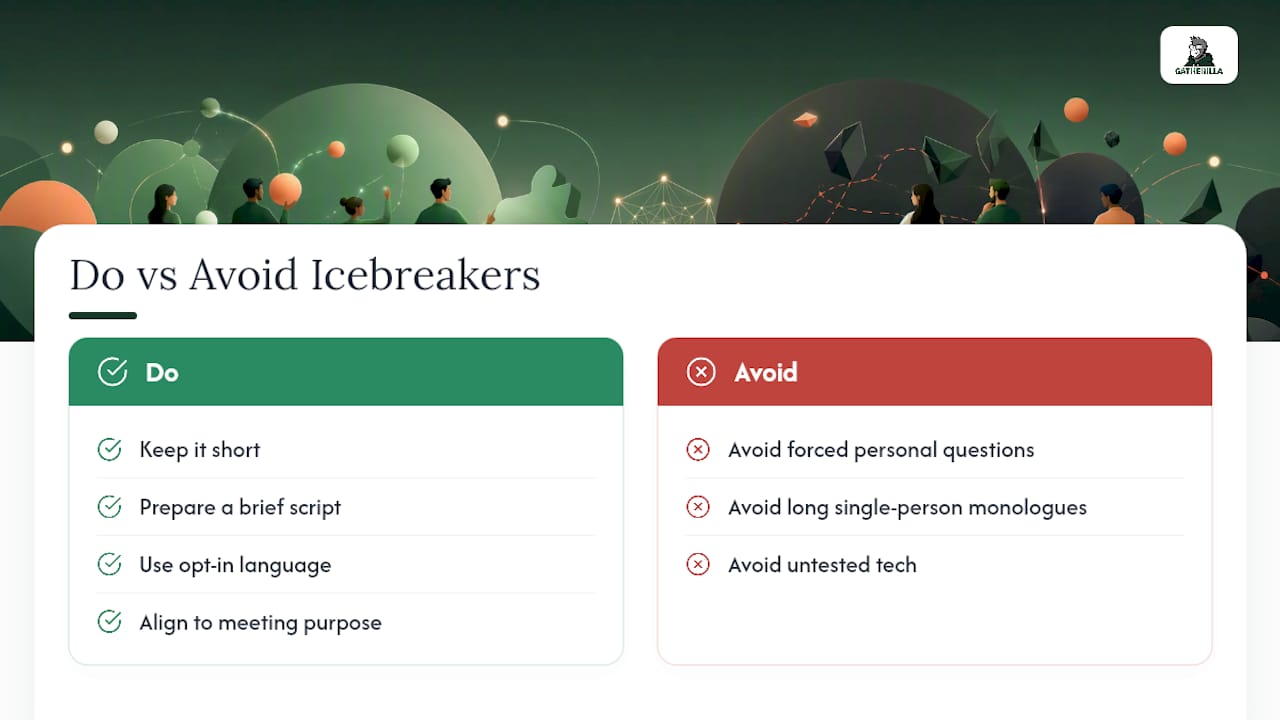
Do these:
Keep it short. A 4-minute icebreaker that ends cleanly is better than an 8-minute one that drags. The moment people start checking their phones, you’ve lost the room and the meeting hasn’t even started. Prepare a script. Not a speech, just the exact sentence you’ll say to kick it off and the exact sentence you’ll use to close it. Facilitators who wing the transition fumble it. And use opt-in language every time, especially in mixed-seniority groups. “Anyone who wants to share” is not a cop-out; it’s the difference between willing participation and performative compliance.
Skip these:
Forced personal questions in a group that hasn’t built trust yet. “What’s your biggest fear?” is not an icebreaker for a cross-functional kickoff meeting. Long single-person monologues, where one person tells a five-minute story while everyone else waits. And untested tech. Running a Whiteboard template for the first time in front of 30 people, while also trying to facilitate, is a recipe for a 3-minute delay and a distracted room.
One thing that gets underestimated: aligning the icebreaker with the meeting’s purpose. A retrospective benefits from a “one win” opener because it primes people to think constructively. A brainstorm benefits from a creative prompt. A random trivia question before a budget review creates tonal whiplash. The best icebreakers don’t just warm up the room; they point the room in the right direction.
Gatherilla makes recurring team engagement easier than DIY
Running a one-off icebreaker in Teams is straightforward. Running a consistent, engaging program across multiple teams, every week, without burning out the facilitator is where DIY falls short.
Gatherilla is a browser-based team-building platform built for exactly that scenario. No downloads, no IT approval required, and no facilitator scrambling to build a new prompt bank every Monday. The platform includes multiplayer games, daily word and trivia challenges, real-time leaderboards, and analytics that show you which activities are landing and which aren’t. It works alongside Microsoft Teams (or any video call) without requiring a Teams app install.
The strongest use cases: large all-hands events where native Forms polls aren’t enough, cross-team onboarding programs where new hires need structured connection across departments, and recurring weekly engagement where you want the games to run themselves. The free tier covers basic games; the paid plan adds analytics, more activities, and priority support.
Start a free trial at Gatherilla and run your first browser-based game in the next Teams meeting.
Sources
- Ice breakers and fun with Microsoft Whiteboard
- Icebreakers with Microsoft Teams (Original) - eLearning - University of Queensland
- Icebreaker Questions Generator — Free, 340+ for Team Meetings | Estimioo